Installation
🌐 KR
1. Installation & Trial Period
1) Plugin Installation
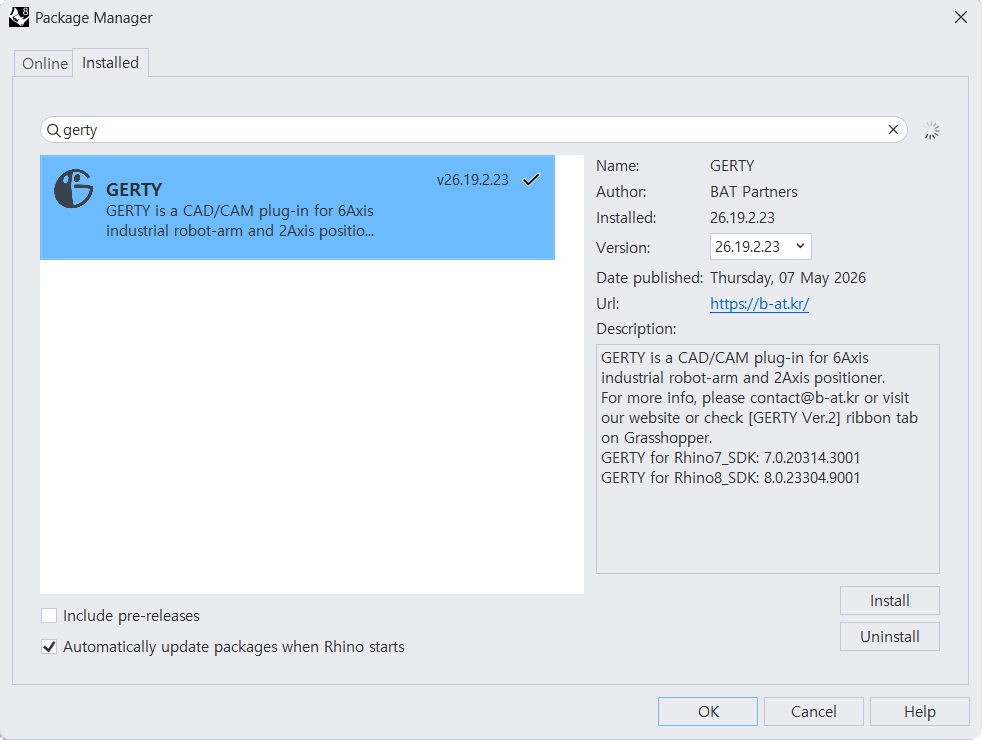
Locate ‘GERTY’ in the Rhino PackageManager, install the latest version, and restart Rhino.
2) Trial License
Upon initial launch, a 30-day Trial License will be automatically activated, granting full access to all features.
3) Automatic Updates
To ensure you are always utilizing the most recent version of GERTY, please enable the ‘Automatically update packages when Rhino starts’ option in your settings.
2. GetHardwareIDs
1) Paid Subscription
Upon the expiration of the trial period, users may transition to a paid subscription service for continued access to GERTY.
2) Hardware Identification
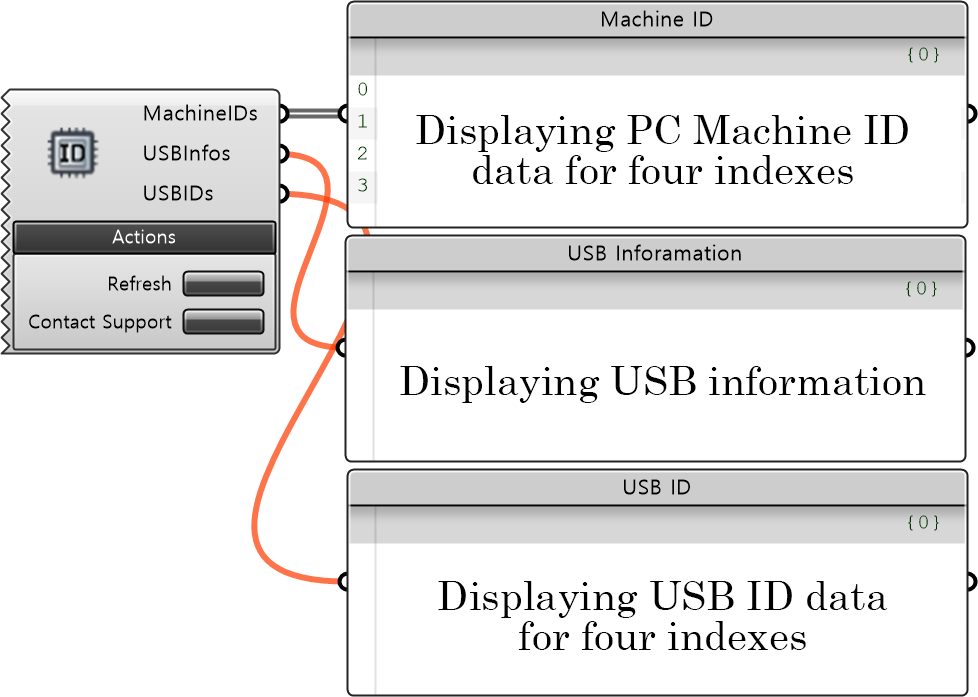
When purchasing a license, please utilize the GetHardwareIDs component to retrieve your device’s unique MAC address data.
3) Copying Identification Data
The extracted data can be retrieved by right-clicking on the output panel and selecting the “Copy Data Only” option to ensure an accurate copy.
Please submit the copied MAC address via the official web form provided through the ‘Contact Support’ button or by emailing it to contact@b-at.kr.
3. Check the License
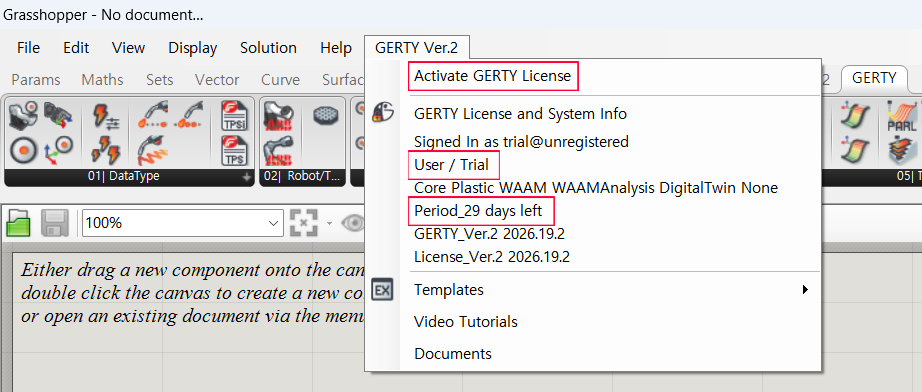
Upon the expiration of the trial period, you may purchase a full license for continued service by contacting us at contact@b-at.kr. Please enter the issued license key by navigating to the ‘GERTY Ver.2’ > ‘Activate GERTY License’ tab in the Grasshopper top ribbon.
To complete the activation process, please close all active Rhino windows and restart the application.
Once activation is complete, you can verify your remaining license period at any time within the GERTY Ver.2 menu.
We invite you to launch the provided GERTY-exclusive templates to begin your project immediately and explore the software’s full range of capabilities.
In the event that the submission form is unavailable or not displayed correctly, please forward the required information to our support team at contact@b-at.kr.