GERTY Component
🌐 KR
| Overview
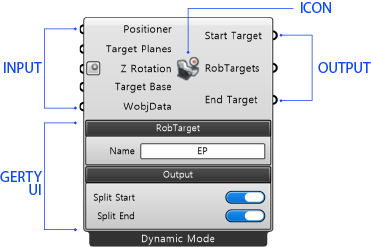
The basic structure of GERTY components follows the Rhino Grasshopper structure. GERTY has unique functions, and you can set values corresponding to essential parameters. The GERTY UI is broadly divided into 7 types, and once the input and essential parameter values are defined, they are delivered as output values.
| Input
These are values that must be received externally, and you can connect and use Rhino/GERTY components according to the data type. There are values that must be input, and values that are not (optional values). Optional values can be left blank, and it is normal for the component color to turn gray.
(1) Connect Node
The method is the same as connecting basic Grasshopper component values.
(2) Mode Option
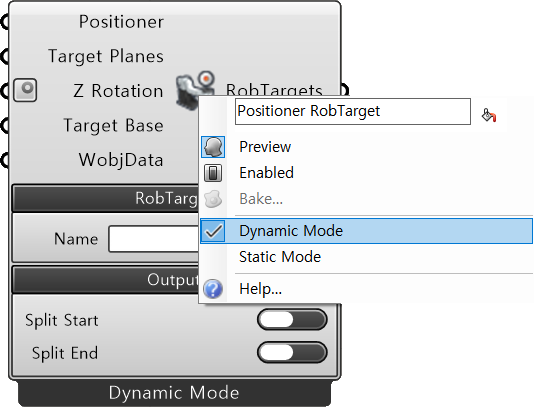
For certain components, you can switch component modes or add functions. You can check the Context Menu by right-clicking the component icon, and the types of components are as follows.
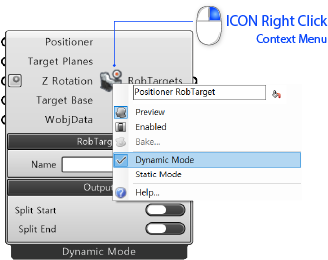
ToolData,WobjData,Positioner RobTarget,SeamData,WeldData,TPSiSynergic,TPSSynergic,ABB Positioner,ABB Robot,WorkBench,Code Solver,Solid Shell,Surface Shell,RePath Tree
Example
| GERTY UI
These must be included in the component values, and in the case of the above values, they can be redefined by the user.
Tab
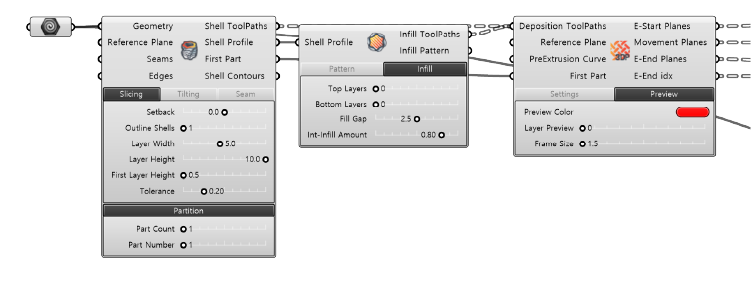
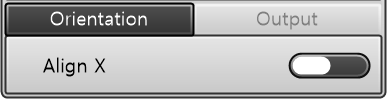
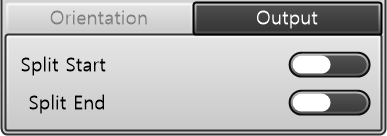
Specific category options have been grouped into [Tab]s according to their function to allow for detailed access. The selected [Tab] is activated in a dark color, and related settings can be customized. Uncustomized essential parameter values follow the default values set in GERTY.
Example
a. Text Field
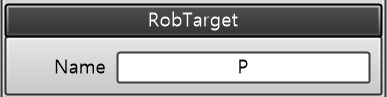
Users can edit/write in the Text Field by double-clicking the mouse. Please refer to each component document for the written values. Basically, you can enter text including English letters or numbers.
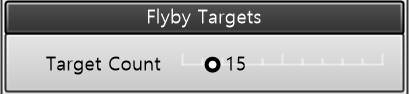
b. Slider
Users can access the value settings in two ways. One is by double-clicking the label written next to the slider, and the other is by dragging the pointer on the Slider Bar left/right or double-clicking the mouse to change/input the value.
Double
Can receive decimal values, including integers.
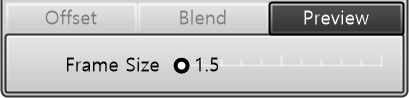
Integer
Only positive integer values can be entered.
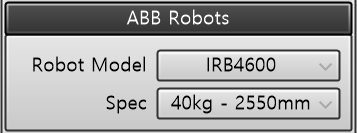
c. DropDown
You can select the models or options provided by GERTY. For Tool/WorkBench models, objects Exported by the user can be saved in GERTY and loaded.
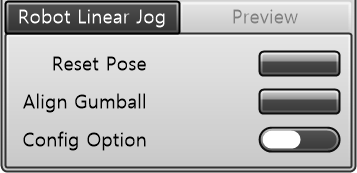
d. Button / Toggle
In the case of a Button, it temporarily reactivates the state of the component. A Toggle completely switches the component’s state. For some components, input values and essential parameters may be added/removed.
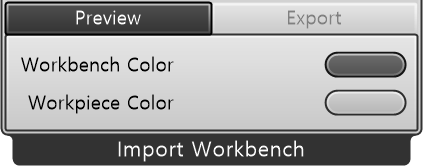
e. Color Swatch
You can customize the color of the active model/path in the simulation.
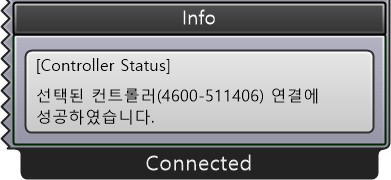
f. Panel
When a component is activated, the component’s result values are exposed and provided in a panel.
g. Process Gauge
For components that take a certain amount of time to process data, the progress can be visually shared with the user. It is located at the bottom of the component and exposes the progress in percent (%).